Apple Watch
Private Authenticator has an Apple Watch app, so you can read a code from your wrist without reaching for the phone. The Watch app shows codes only: adding, editing and everything else stays on the iPhone.
Setting it up
- Install the Watch app. Open the Watch app on your iPhone, scroll down to Available Apps, and tap Install beside Private Authenticator. Your Watch needs watchOS 10 or later.
- Give the Watch a passcode, if it doesn't have one (Watch app → Passcode). The Watch app refuses to run without one, because the passcode is what protects your codes there.
- Turn on Device Sync. In Private Authenticator on the iPhone, go to Info → Settings, and under Apple Watch switch on Use Device Sync. Face ID or Touch ID confirms, and the app sends every active account, with its tags, to the Watch.
- Open Private Authenticator on the Watch. The setting stays greyed out on the iPhone, with the note Waiting for your Apple Watch to confirm the change, until the Watch app has received the accounts. Once it has, the note reads Synced: 12 accounts and 3 tags on the Watch.
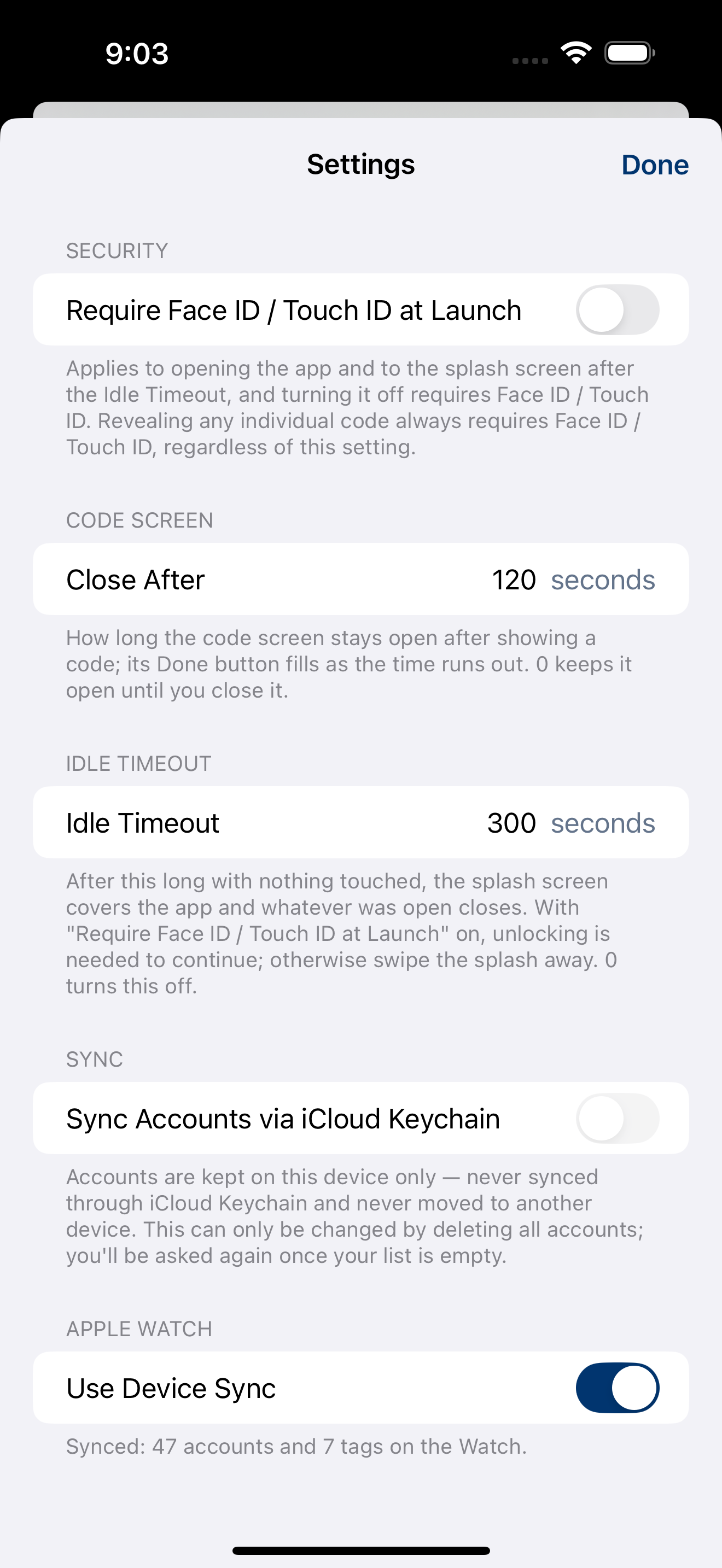
Everything travels over the private connection between your iPhone and its paired Watch, never through iCloud, and never through Pebble IT. The Apple Watch pairing is device-to-device transmission, not Apple Keychain.
Using the Watch app
Open the app on the Watch and unlock it with the Watch's passcode. It always asks. You then see three pages to swipe between:
- Recent: the accounts you used most recently at the top, just like the iPhone. Using a code on the Watch moves the account to the top on the iPhone too, and the other way round.
- Alphabetical: every account by name, with an A–Z / Z–A button.
- Tags: your tags with their counts, and 🚫 No Tags for the rest. Tap a tag to see its accounts.
Tap an account and its code appears straight away, with the three pebbles emptying below it. A blue block across the bottom of the screen, behind the pebbles, shrinks as the code screen's time runs out (the same Close After time as on the iPhone), turning red near the end. Swipe up or down for the account's name and description, its tags, and its code type and the time of the last sync. Tap the code to close it and, with Tap to Copy on, copy it.
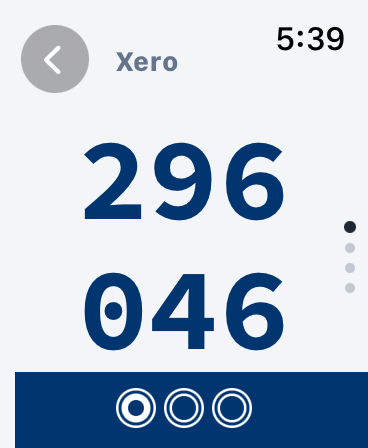
The Watch app locks itself again whenever the screen dims or the Watch locks, and after the iPhone's Idle Timeout with nothing touched. Each unlock lands you on Recent.
Tap to Copy
An Apple Watch has no clipboard that apps can use, so the Watch asks your iPhone to do the copying.
When you tap a code on the Watch, the code is sent to Private Authenticator on your iPhone, which puts it on the iPhone's clipboard for 30 seconds. The Watch then shows a tick and Copied for a moment and goes back to Recent. From there you can paste the code:
- on the iPhone itself, or
- on your Mac or iPad, through Apple's Universal Clipboard, if it's nearby and signed in to the same Apple ID.
If the iPhone can't be reached, the Watch shows a cross and Copy failed instead. Open the account again (it's at the top of Recent) and type the code from the Watch.
Tap to Copy is on to begin with. To turn it off, go to Info → Settings on the iPhone and switch off Tap to Copy on Apple Watch, under Apple Watch. A tap on a code then only closes it. The switch needs Device Sync to be on.
Pasting on a Mac depends on Universal Clipboard
The Watch can tell you the code reached your iPhone's clipboard. Getting it from there to your Mac is Apple's Universal Clipboard, which needs Bluetooth, Wi-Fi and Handoff on both devices and works best with the iPhone unlocked. If the paste doesn't arrive, read the code from the Watch and type it.
When the iPhone is out of reach
Each time you unlock the Watch app, it checks whether Private Authenticator on your iPhone can be reached. If it can't, you'll see Private Authenticator on iPhone not available for a second before the Recent page. Your codes still work on the Watch by themselves; Tap to Copy won't, and changes made on the iPhone won't arrive, until the iPhone is back in range.
What is, and isn't, on the Watch
- Active accounts only. Archived accounts are never sent, and archiving an account removes it from the Watch.
- Tags come across with their accounts; a tag with no active account isn't shown.
- An account added on another iPhone through iCloud Keychain sync, or one you have just unarchived, isn't on the Watch yet. The iPhone's Settings page lists how many are waiting. Open each one's code once on the iPhone and it goes across, or switch Device Sync off and on again to send everything afresh.
- Settings don't exist on the Watch. The Close After, Idle Timeout and Tap to Copy settings follow the iPhone's.
Turning it off
Switch Use Device Sync off on the iPhone. The app asks you to confirm with Turn Off and Remove from Watch, because turning it off removes every account from the Watch. The switch stays greyed out until the Watch has confirmed.
Unpairing a Watch from the iPhone erases the Watch completely, Private Authenticator's accounts included, so a Watch you sell or pass on never keeps your codes.
Messages you might see on the Watch
- No passcode: set one in the Watch app on your iPhone, under Passcode, then open the app again.
- No accounts: check that Device Sync is on in Private Authenticator's Settings on the iPhone, and open the app there so it can send.
- This account is no longer on the Watch: it was archived or removed on the iPhone while its code was open. Go back to the list.
Each of these offers Quit, which closes the Watch app.
Two more pass by themselves:
- Private Authenticator on iPhone not available: the iPhone is out of range or switched off. It shows for a second when you unlock the Watch app; see When the iPhone is out of reach.
- Copy failed: you tapped a code and the iPhone didn't answer. See Tap to Copy.
Continue to the Backups & Moving book: Why Back Up?.